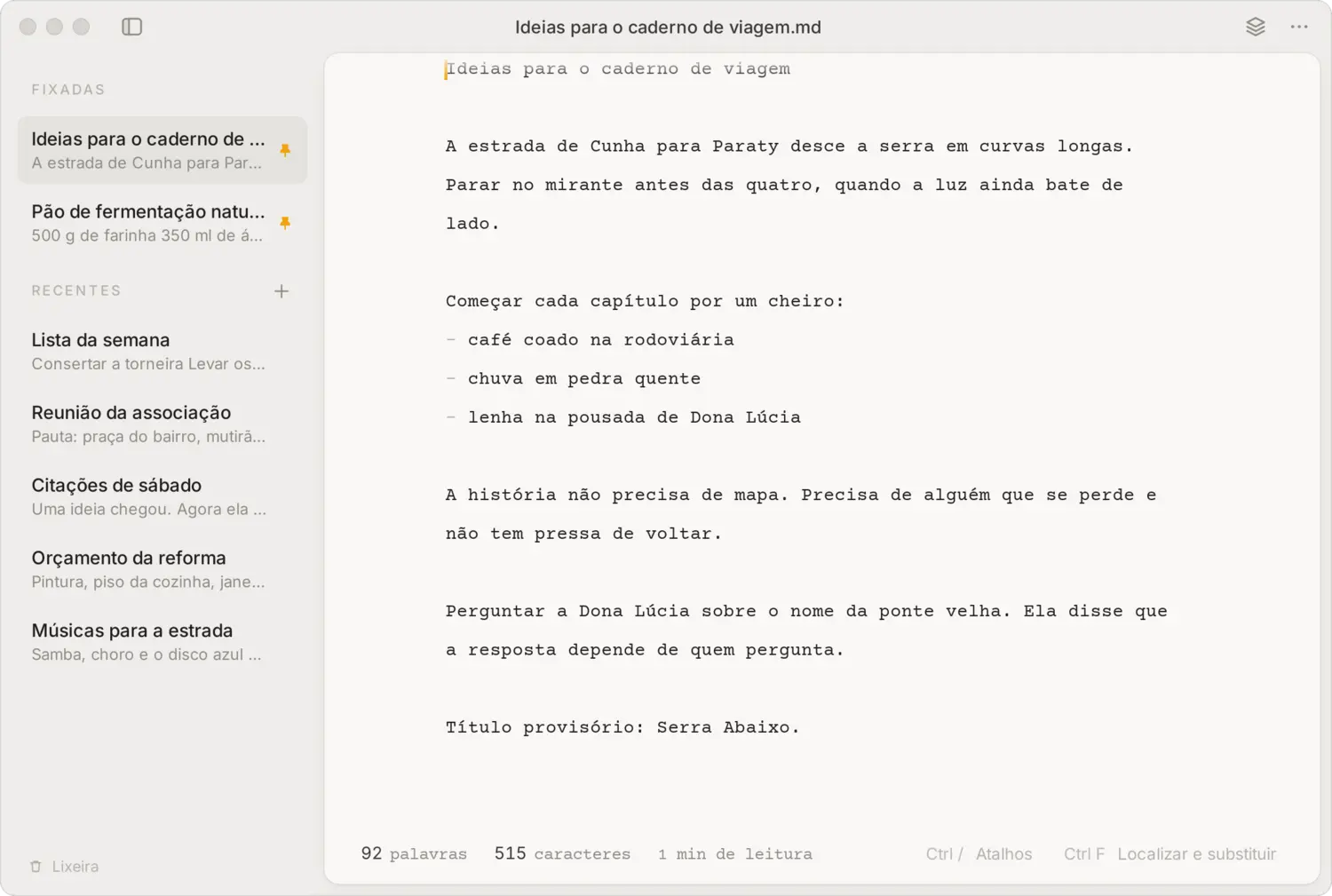
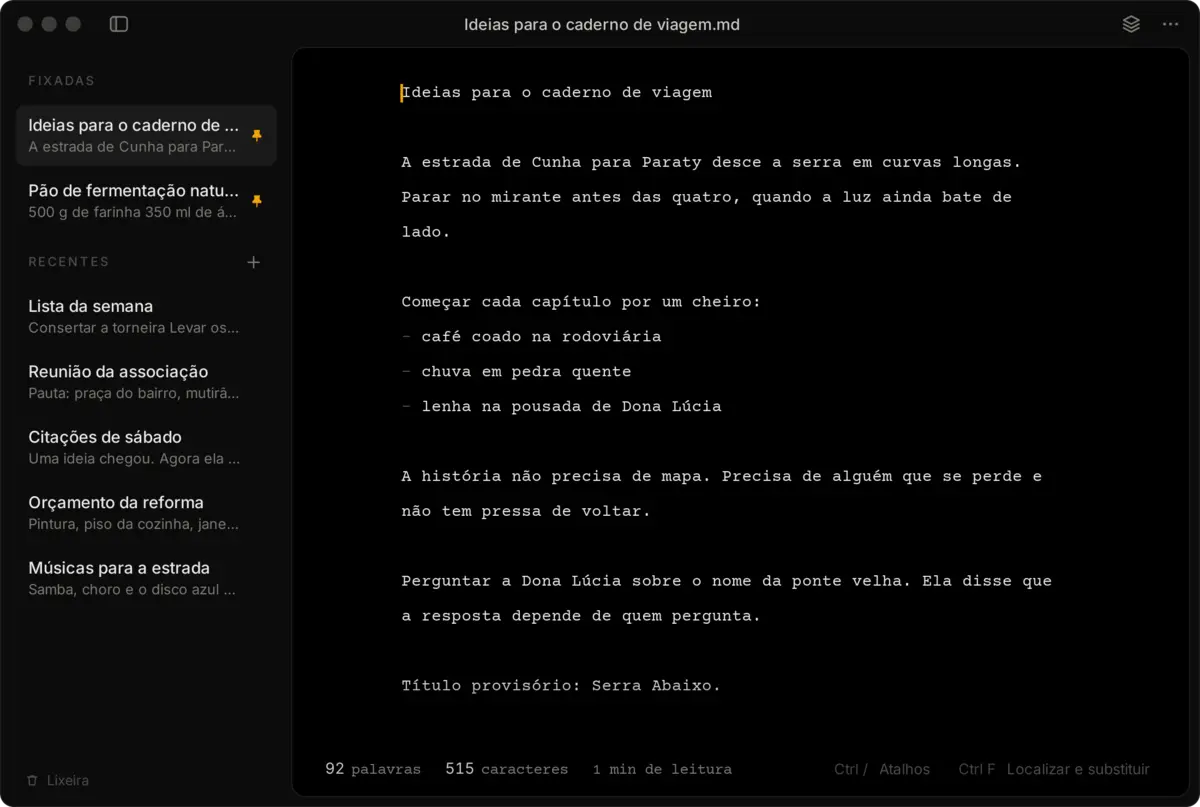
Every note lives in the notas.db database and also as a plain .md file. If you ever want to leave, just take the folder. It opens as a vault in Obsidian, and the files go into Notion through its Markdown importer.
~/Documents/LumeNotes/
├── notas.db   SQLite database
└── Notas/     an .md copy of every note, updated as you type
What it does
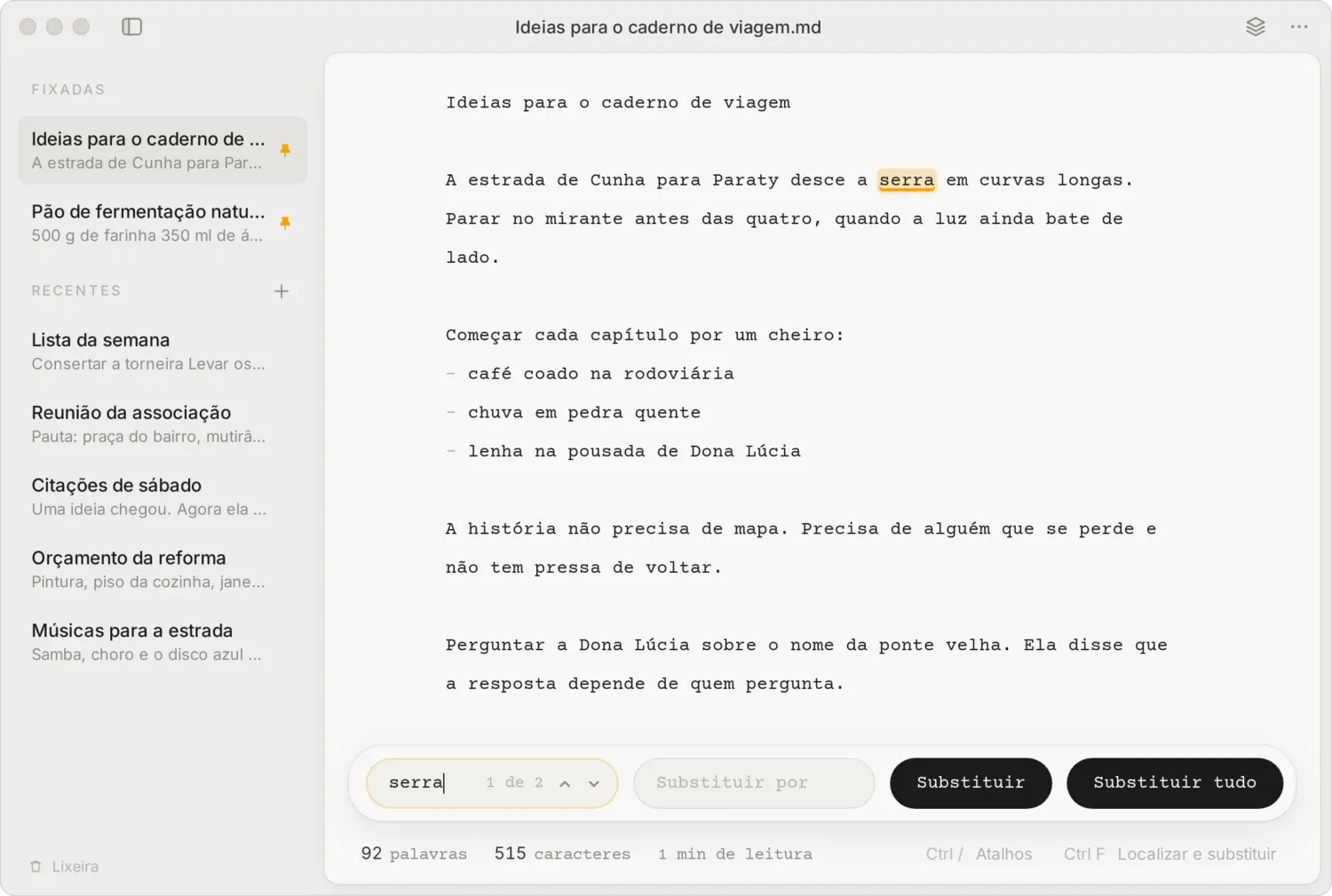
Find and replace
Ctrl F highlights as you type and shows a counter like “1 of 3”. Replace one at a time or all at once.
In and out in any format
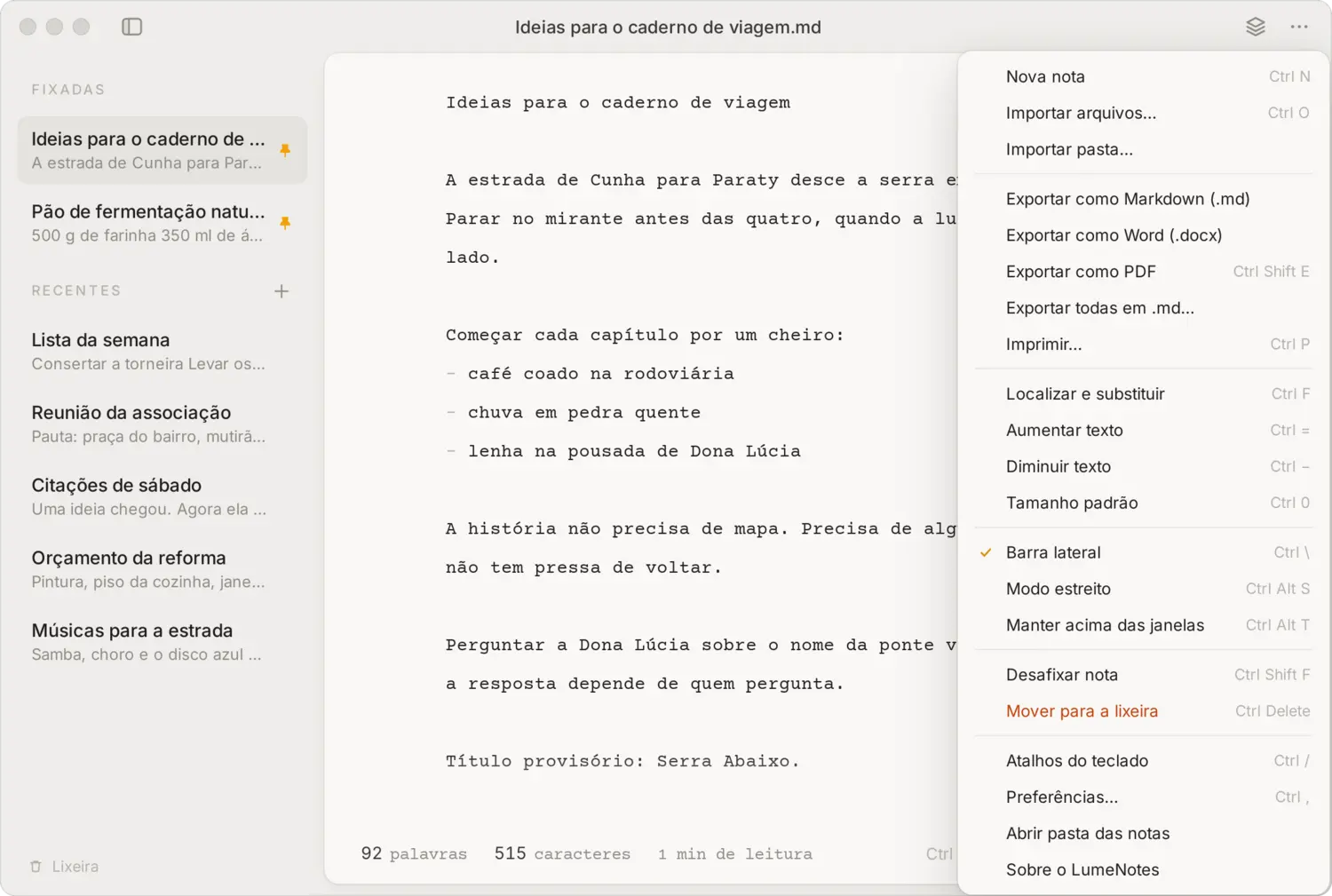
Drag in an .md, a .txt, an Obsidian folder or a .zip exported from Notion. To leave, export to Markdown, Word or PDF.
Paste without formatting, with a notice
Drag a note out of the window and the .md lands where you drop it
Trash with restore and permanent delete
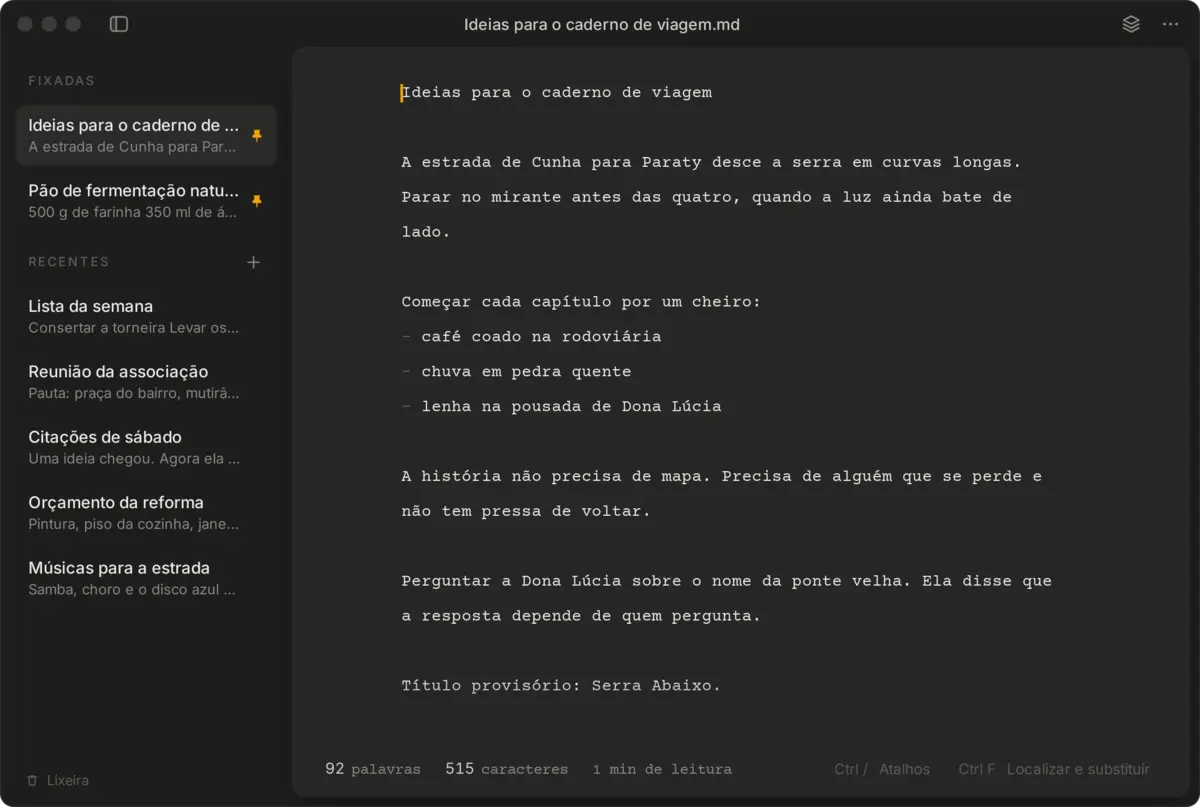
Four themes, six fonts
Light, Dark, Black for OLED screens and Auto, which follows your system. Courier Prime, IBM Plex Mono, JetBrains Mono, Inter and others, from 11 to 24 points.
DarkBlack
Narrow mode
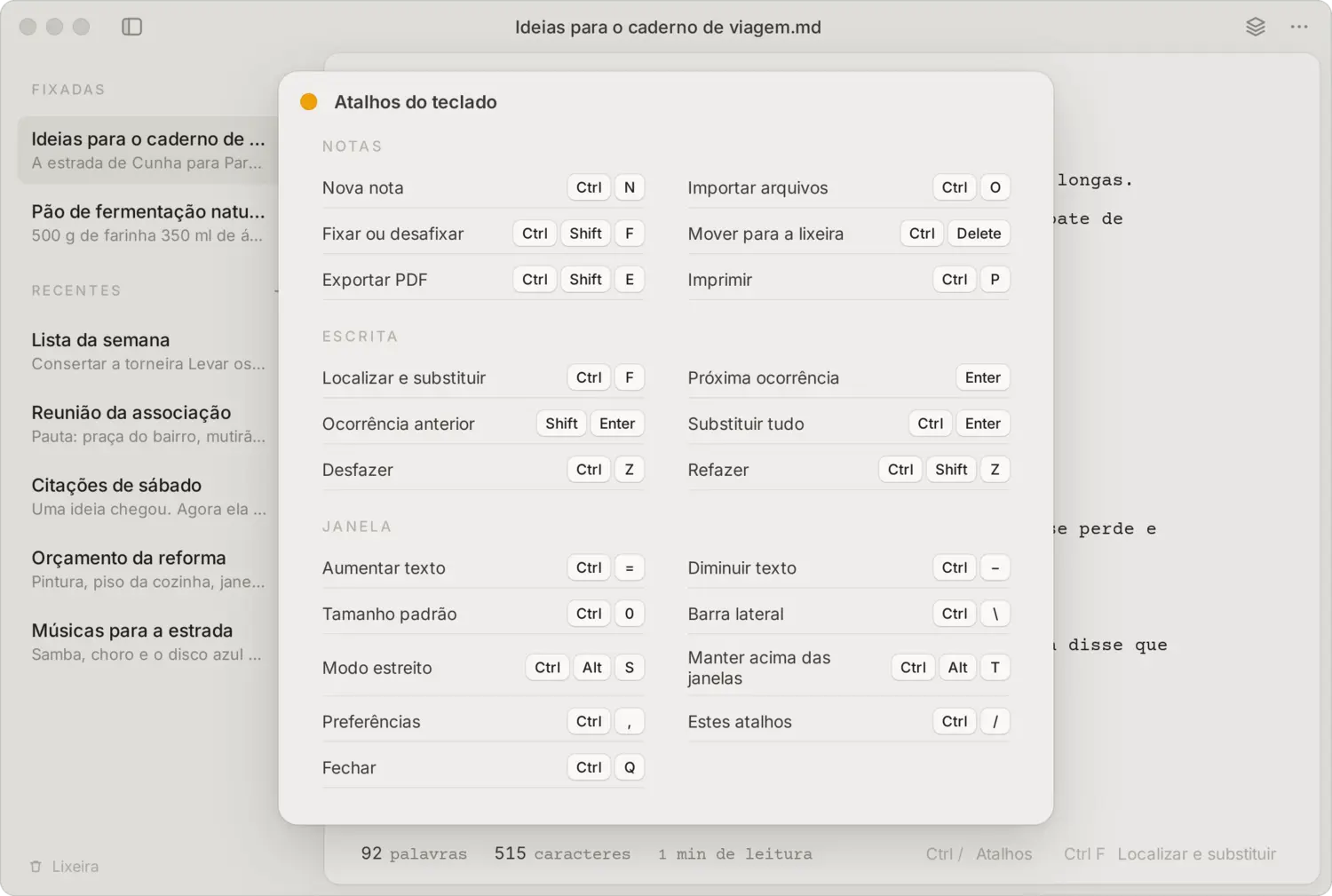
Ctrl Alt S shrinks the window to one column, good for keeping next to another program. Ctrl Alt T keeps LumeNotes above other windows.
Word, character and reading time counts, for the selection too
A spell checker you can turn on and off
Arabic and Hebrew, each paragraph in its own direction
Everything from the keyboard
Creating, pinning, exporting and resizing text all have shortcuts. Ctrl / shows the full list when you forget.
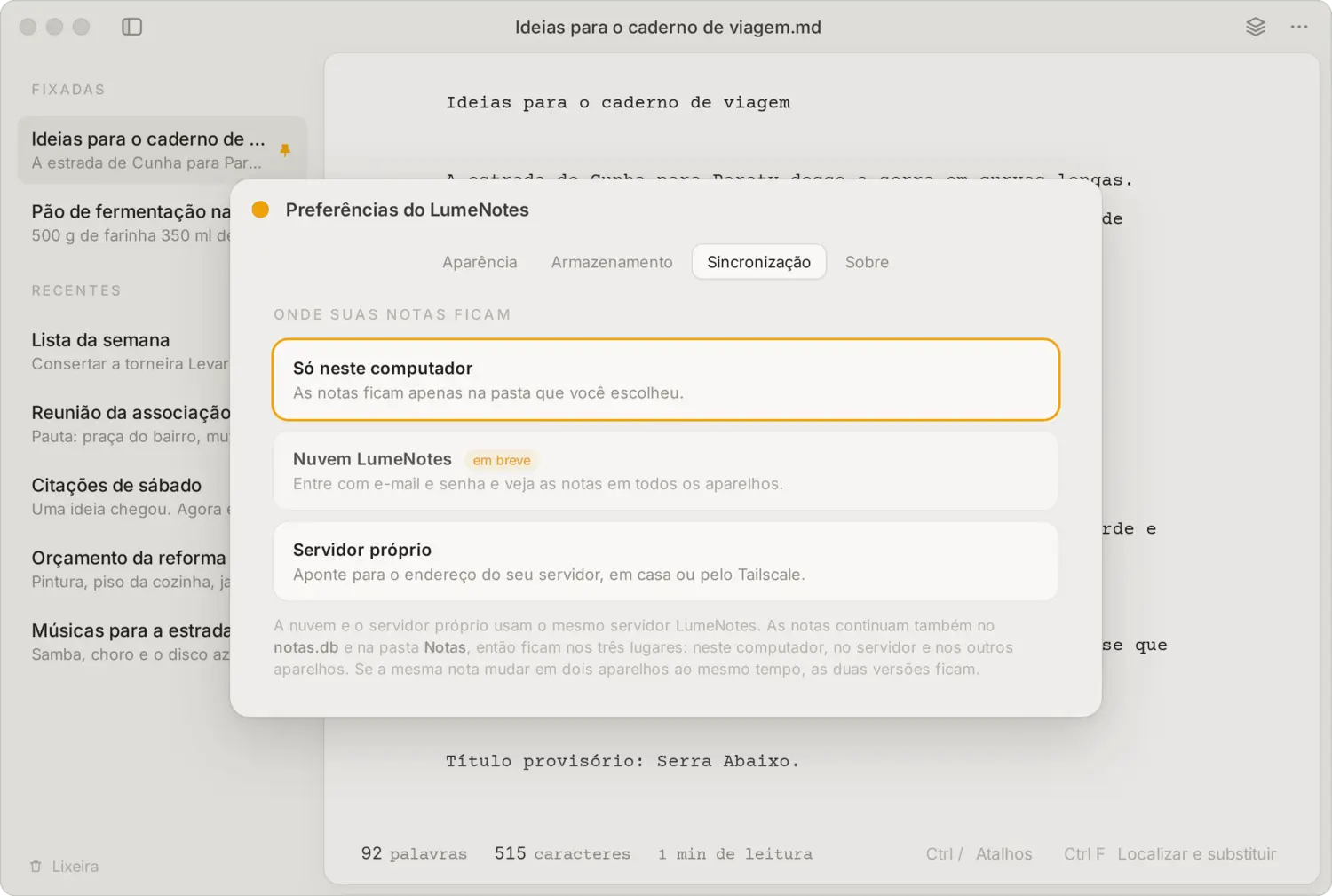
Sync without handing over your notes
By default, everything stays on your computer. With your own server, notes live in notas.db, in the Notasfolder, on the server and on the other devices on the same account.
If the same note changes on two devices, the newest version stays and the other becomes a note beside it
Without a network, everything keeps working and changes are sent when the connection returns
With Tailscale, it works from anywhere without opening a port on your router
The two files
The first is all you need to start. The second only comes in when you want the same notes on more than one device.
The app
lumenotes-instalador.sh
Installs or updates LumeNotes and the Portuguese spell checker. Mint, Ubuntu, Debian, Fedora, openSUSE, Arch and derivatives.
Verify the file (SHA-256)dffdafd753c4a2ab26836a3678913a4d23d26980eff91040d4bc978a665b372e
The server
lumenotes-servidor-instalador.sh
Moves everything over SSH or installs right there. Linux or macOS, with or without Docker. It picks a free port and shows the address to enter in the app.
bash lumenotes-servidor-instalador.sh
Optional. Afterward, lumenotes-servidor handles status, backups and addresses.